You’ve just created an email address, or you’ve had one for a long time without really knowing how to use it. The screen is filled with dozens of messages, tabs, and buttons. Where should you start to access your inbox and read your emails without getting lost? This guide covers the basics, step by step.
Email tracking pixels: what happens when you read a message without being told
Before we even talk about signing in, there’s one thing worth knowing. When you open a promotional email, an invisible pixel can signal that you’ve read the message. This tiny image, embedded in the body of the email, sends a confirmation to the sender’s server when you open it.
In practice, the company that emailed you knows that you opened its message, when you opened it, and sometimes which device you used. This is common in newsletters and promotional offers.
To limit this tracking, most email services let you turn off automatic image loading. In Gmail, you’ll find this setting under “Images” in Settings. Outlook and Yahoo offer a similar option. When you turn off image loading, tracking pixels no longer activate when you open an email.
You don’t have to do this, but it’s useful to know about from the start. Knowing how to open your inbox and read your emails also means understanding what happens behind the scenes.
Sign in to your email from a computer or phone
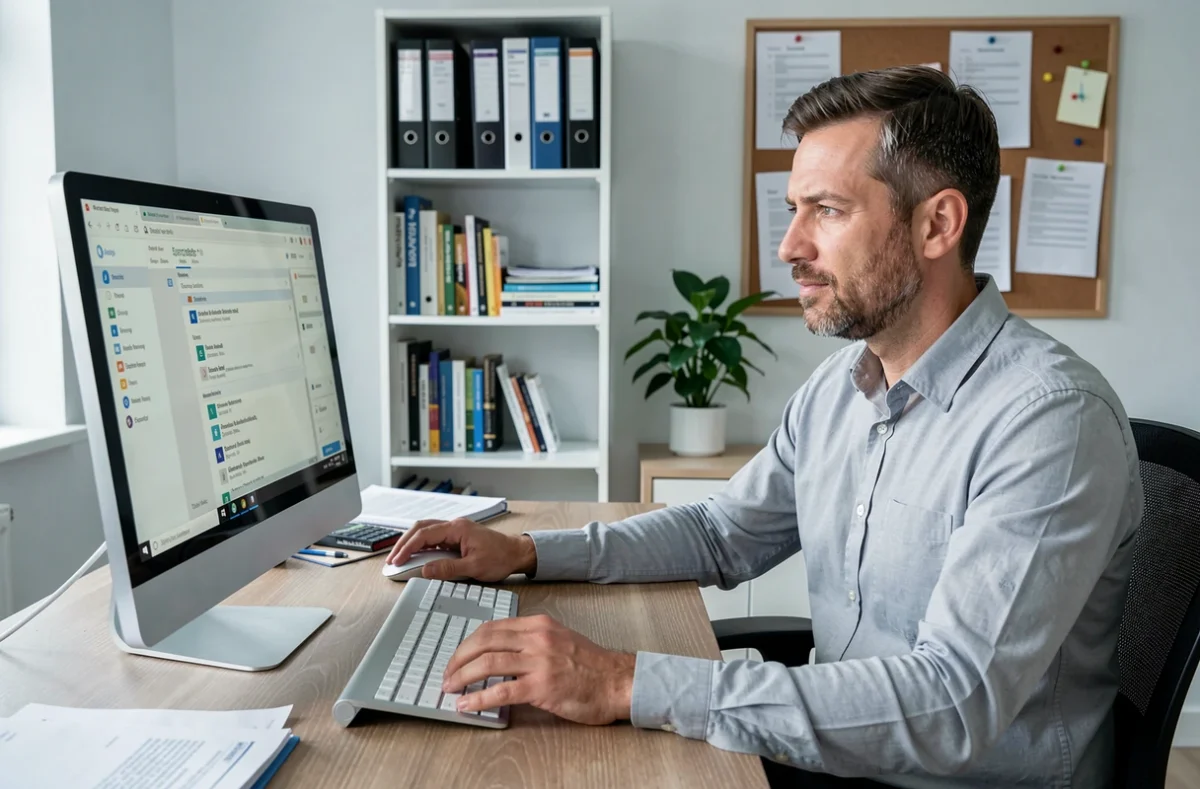
There are two ways to access your inbox. The first is through a web browser (Chrome, Firefox, Safari). Type the service’s address into the bar at the top of the screen. For Gmail, it’s gmail.com. For Outlook, outlook.live.com. For Yahoo, mail.yahoo.com.
A sign-in page will appear. Enter your email address, then your password. If everything is correct, your inbox will appear.
The second way is through an app on your phone or tablet. The Gmail app is already installed on Android devices. On an iPhone or iPad, you can download it from the App Store. When you open the app, it will ask you to sign in with your email address and password.
What to do if you can’t sign in
You’ve entered your password, but access is denied. First, check that Caps Lock isn’t on, because passwords are case-sensitive. If the problem persists, use the “Forgot password” link on the sign-in page.
The service will then offer to send you a code by text message or to a recovery email address. This code lets you create a new password. Keep your recovery email address up to date—it’s your most reliable safety net.
Read your emails and understand your inbox
Once you’re signed in, you’ll land in your inbox. The newest messages appear at the top of the list. Each row shows three things: the sender’s name, the subject (the message title), and a preview of the opening text.
Unread messages appear in bold. Click or tap a message to open it and read the full contents. To return to the list, use the back arrow in the top-left corner.
Reply to, forward, or delete a message
Depending on your email service, three buttons will appear at the top or bottom of an open message:
- “Reply” sends your response only to the person who emailed you. The conversation thread stays intact, making it easier to keep track of the exchange.
- “Forward” sends a copy of the message to someone else. This is useful when another person needs to read the information you received.
- “Delete” moves the message to the trash. Depending on your email service, it will stay there for a while before being permanently deleted.
You don’t have to reply to every message. Newsletters and automatic notifications can simply be read or deleted.
Spot a suspicious email before you click
Sooner or later, fraudulent messages will land in your inbox. Your spam filter blocks some of them, but others get through. Have you received a message from your bank asking you to “confirm your urgent information”? It’s probably a phishing attempt.
The danger doesn’t come from opening the message itself, but from clicking a link or opening an attachment. Opening a suspicious email without clicking anything won’t compromise your account.
Here are a few signs that a message might be suspicious:
- The sender’s email address doesn’t match the displayed name. For example, a message signed “La Poste” sent from an address ending in @xyz-random.com.
- The message creates a sense of urgency (“your account will be blocked in 24h”) to pressure you into acting quickly without thinking.
- The text contains unusual mistakes or uses a generic greeting (“Dear customer”) instead of your name.
- If you’re unsure, don’t click any links in the message. Open a new tab and go directly to the official website of the service in question to check.
Protect your inbox from day one
Your email account often acts as a key to your other online accounts: social media, shopping, and government services. If someone accesses your inbox, they can reset the passwords for all of these services.
A unique password and two-factor authentication protect your email account. Don’t use your email password anywhere else. Combine letters, numbers, and special characters, and choose a long password.
Two-factor authentication (sometimes called “two-step verification”) adds another layer of security. After you enter your password, the service sends you a code by text message or through a dedicated app. Without this code, access remains blocked—even if someone knows your password.
In Gmail, you can enable this option in your Google Account settings, under “Security.” In Outlook, you’ll find it in your Microsoft account settings. This protection significantly strengthens the security of your email account.
Email is an everyday tool, not a technical skill reserved for experts. Knowing how to sign in, read a message, spot a scam, and secure your account covers most needs. The rest will come with practice, one email at a time.