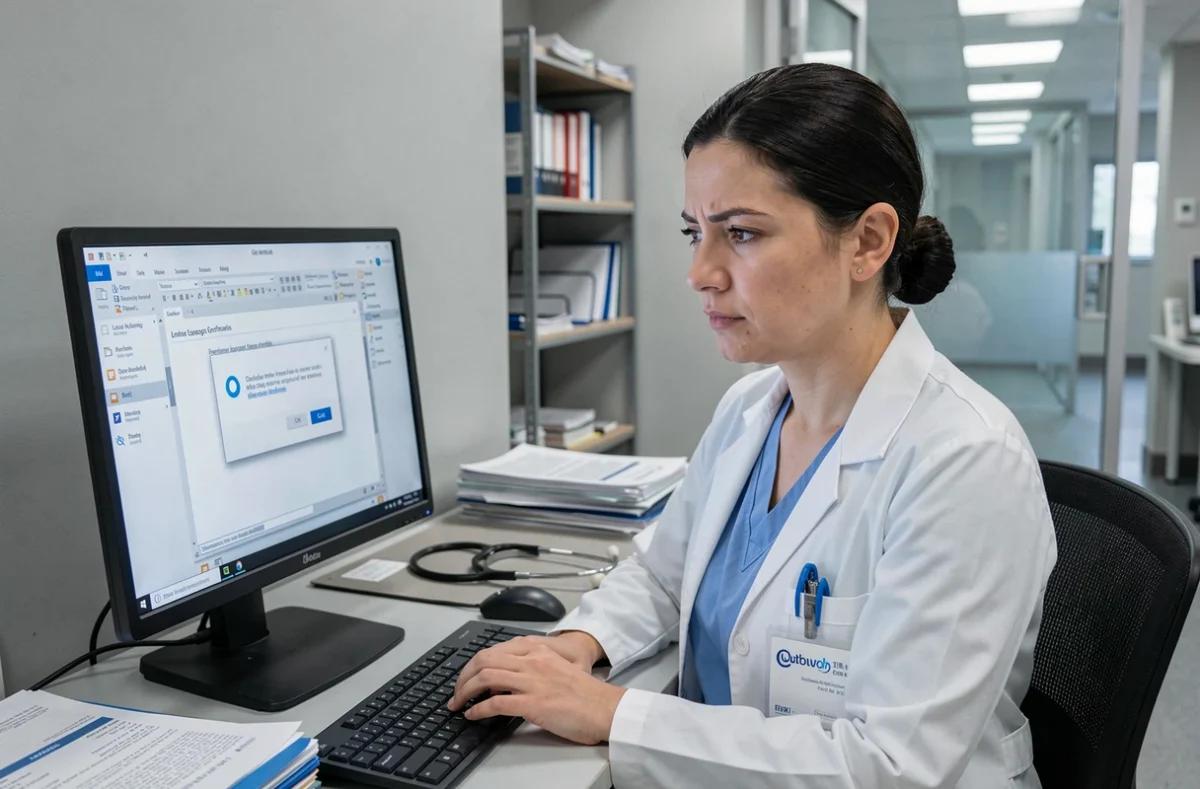
AP-HP brings together dozens of hospitals across Île-de-France, and its employees’ professional email runs on Microsoft Outlook infrastructure. Email login problems are a recurring issue, whether they involve authentication errors, pages timing out, or synchronization getting stuck. AP-HP’s official website itself notes that some of its web portals undergo occasional maintenance, which can make internal tools harder to access.
Work computer, personal device, remote access: three scenarios, three potential sources of errors
Most employees who run into problems don’t realize that Outlook behaves differently depending on the device they’re using. On a workstation located within a hospital, the connection usually goes through AP-HP’s internal network, with authentication handled in the background by the facility’s Active Directory.
Things are different when using a personal device (home computer, smartphone, or tablet). Accessing email often requires using the OWA webmail service (Outlook Web App) in a browser, or manually setting up an Outlook profile with AP-HP’s Exchange settings.
Errors such as “Sign-in failed” or “Incorrect password” are common in this situation because the required credentials are not the employee’s personal Microsoft account details, but their AP-HP internal domain credentials.
Remote access via VPN adds another layer. If the VPN tunnel is inactive or incorrectly configured, Outlook tries to reach the Exchange server but cannot connect, resulting in certificate errors or timeouts. A detailed guide to accessing AP-HP email in Outlook lists the required settings for each scenario.
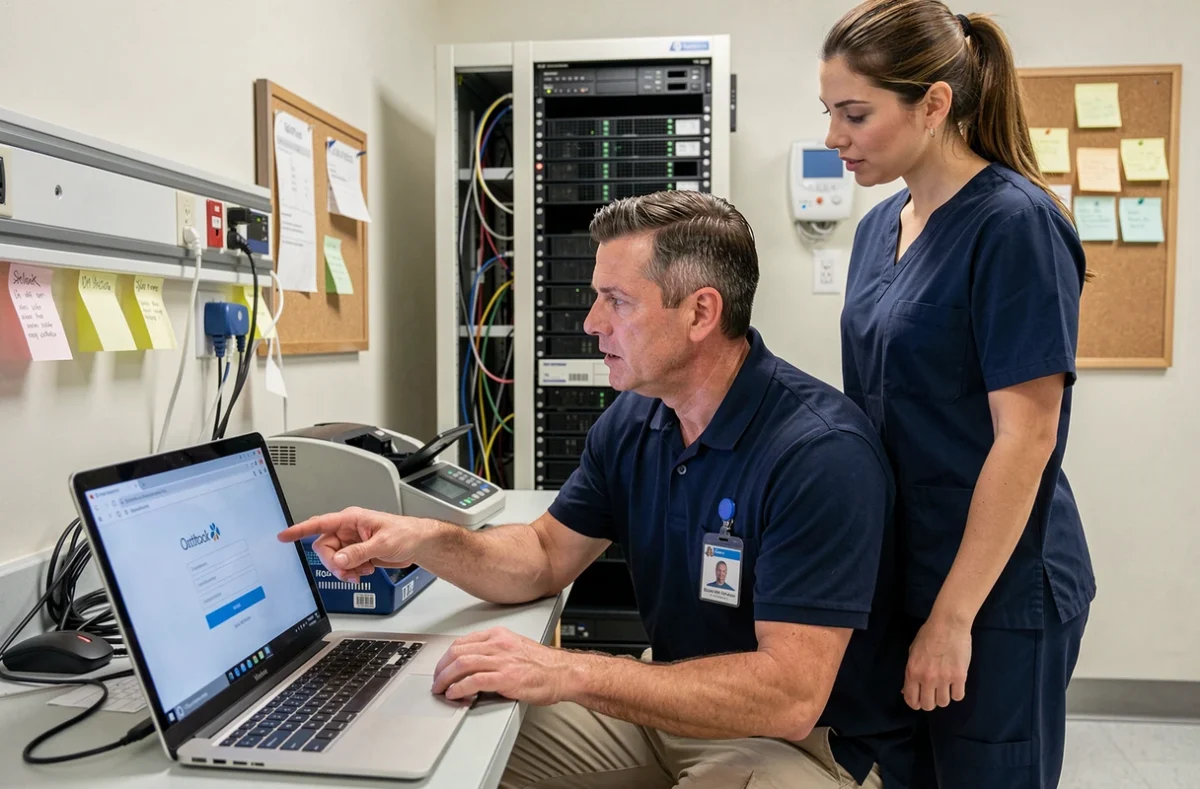
Most common Outlook errors with AP-HP email
Error 401 and authentication loop
Error 401 (“Unauthorized”) is one of the most frequently reported issues. It occurs when the Exchange server rejects the credentials provided. On Microsoft Q&A forums, users describe exactly this pattern: Outlook asks for a code, the user enters it, and the sign-in fails in a loop. The technical logs then show “BootResult: fail” followed by “Error: 401.”
This issue can have several causes:
- The AP-HP account password has expired, as required by the password renewal policies set by each hospital’s IT department
- Windows Credential Manager has stored an old password, and Outlook automatically sends it to the server instead of the new one
- Multifactor authentication (MFA) is enabled on the server, but the local Outlook client is not configured to handle it
Page timed out and connection timeout
The message “The page has timed out” appears mainly in OWA webmail. It means the session expired before authentication was completed. Browser extensions (ad blockers, password managers) can make this worse by interfering with the SSO (Single Sign-On) process used by AP-HP.
Widespread Microsoft outages
Some service interruptions have nothing to do with local settings. Microsoft 365 services occasionally experience outages that affect Outlook on a large scale, including in the healthcare sector. In these cases, no action on the user’s end will fix the problem: you have to wait for Microsoft services to be restored.
How AP-HP employees can fix Outlook sign-in errors
Before trying advanced troubleshooting, determine whether the issue is local or caused by a server outage. Checking the status of Microsoft services (via status.office.com) can quickly rule out the latter.
For recurring authentication errors, the most effective solution is to clear saved credentials. In Windows, open Credential Manager (available through Control Panel), delete all entries related to the AP-HP domain or outlook.office365.com, then restart Outlook.
On a personal device, you will often need to reconfigure your Outlook profile. Delete the existing email profile and create a new one using the Exchange settings provided by your facility’s IT department. The settings required (server, port, encryption type) vary depending on whether the facility uses on-premises Exchange or has migrated to Exchange Online.
For OWA webmail, opening a private browsing window can eliminate conflicts caused by cookies and extensions. If sign-in works in private browsing but not in a regular window, the problem is likely due to the browser cache or an extension.
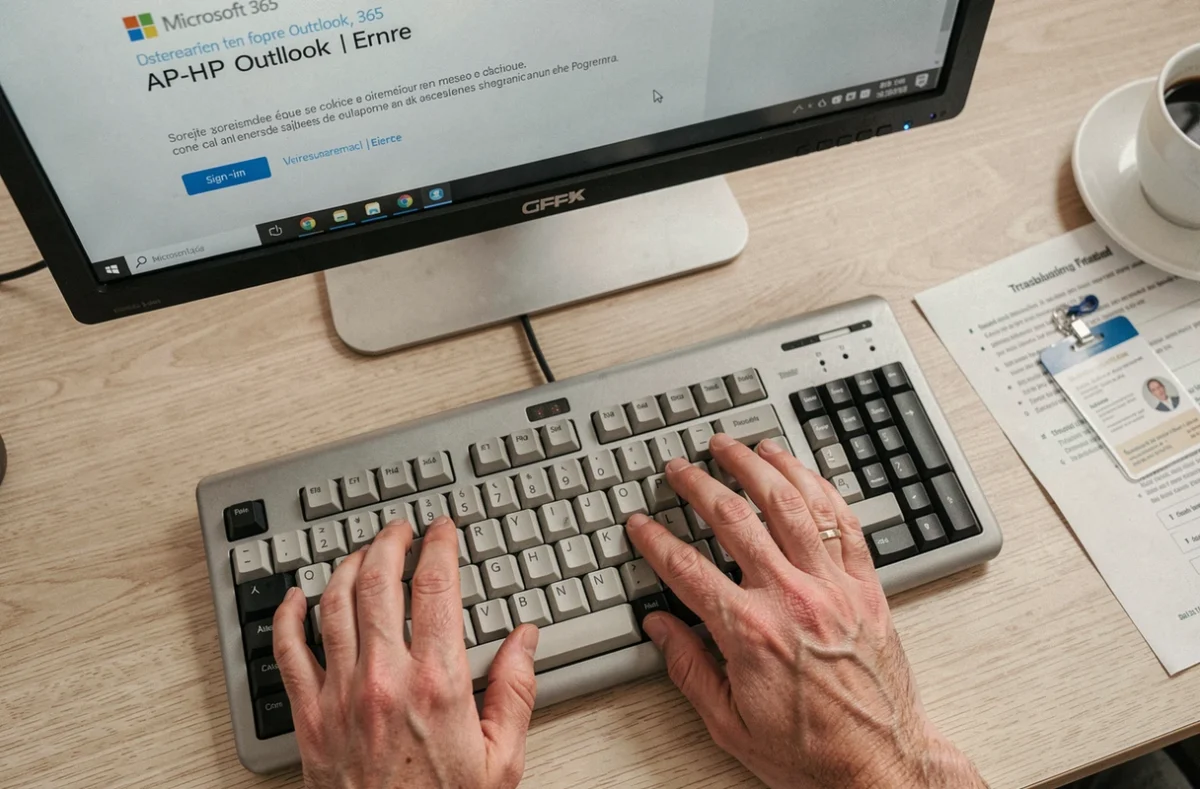
Security guidelines for each type of access
As a healthcare provider, AP-HP enforces strict rules for accessing medical and administrative data. These security requirements explain some of the difficulties employees encounter.
On a work computer located within the hospital, security updates and certificates are managed centrally. Errors are less common, but can occur after system updates that change proxy or root certificate settings.
On a personal device, the IT department does not control the environment. Employees should make sure their operating system is up to date, that the TLS protocol used by their browser or Outlook client is compatible with the Exchange server’s requirements, and that their antivirus software is not intercepting HTTPS connections (a common cause of certificate errors).
For remote access, the institutional VPN remains the recommended channel. Bypassing the VPN to access webmail directly can result in blocks by AP-HP firewalls, which filter connections from unrecognized IP addresses. Some employees then encounter a blank page or a connection refusal with no explicit error message.
Distinguishing between these three access scenarios is the first step in troubleshooting. Employees who correctly identify their environment (internal workstation, personal device, or VPN) can immediately focus on the most likely causes and avoid wasting time on unnecessary steps.